Open OnDemand account registration
Before you can use the NIC6 Web Portal for the first time, you need to register using your CÉCI account. Registration only has to be done once.
Beta service
The Open OnDemand Web Portal is currently in beta and is only available on the NIC6 cluster.
Network access required
The portal can only be reached from the network of a CÉCI member university. ULiège users connected to the VPN can use it to access the portal from anywhere.
Step 1: Open the registration page
Go to the NIC6 Web Portal sign-in page. Since you don't have a portal account yet, you cannot sign in with a passkey or password. Instead, click the Register link at the bottom of the sign-in form.
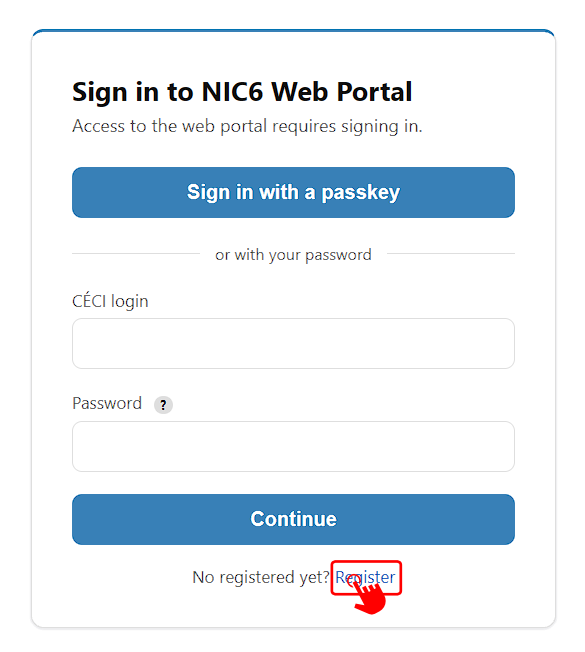
Step 2: Request a registration link
On the Create your account page:
- Enter your CÉCI login (your CÉCI username, not your email address) in the text field.
- Click Send registration link.
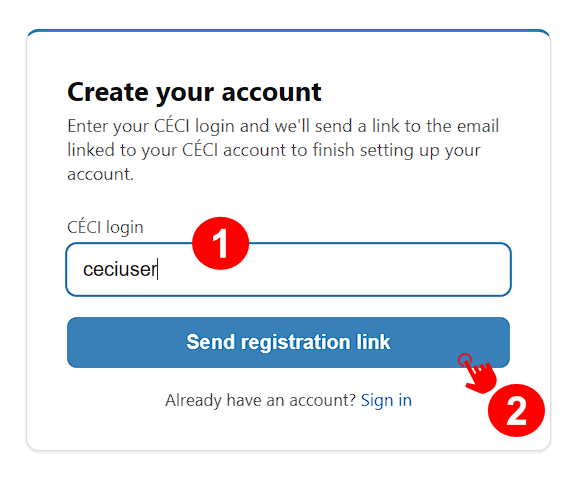
A registration link will be sent to the email address associated with your CÉCI account. Open this email and follow the link to finish setting up your portal account.
Registration email
The link is sent to the email address registered with your CÉCI account. If you don't receive the email within a few minutes, check your spam folder and make sure the CÉCI login you entered is correct. No error message will be displayed if you enter an invalid username.
Step 3: Set your password
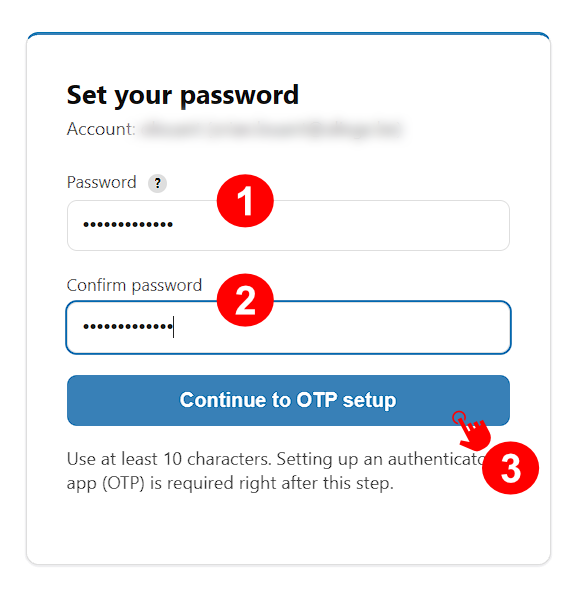
After clicking the link in the registration email, you will be asked to choose a password for your portal account:
- Enter a password in the Password field. It must be at least 10 characters long.
- Enter the same password again in the Confirm password field.
- Click Continue to OTP setup.
About the password
This password is specific to the web portal. It is not the same as your CÉCI SSH key passphrase.
Step 4: Set up two-factor authentication
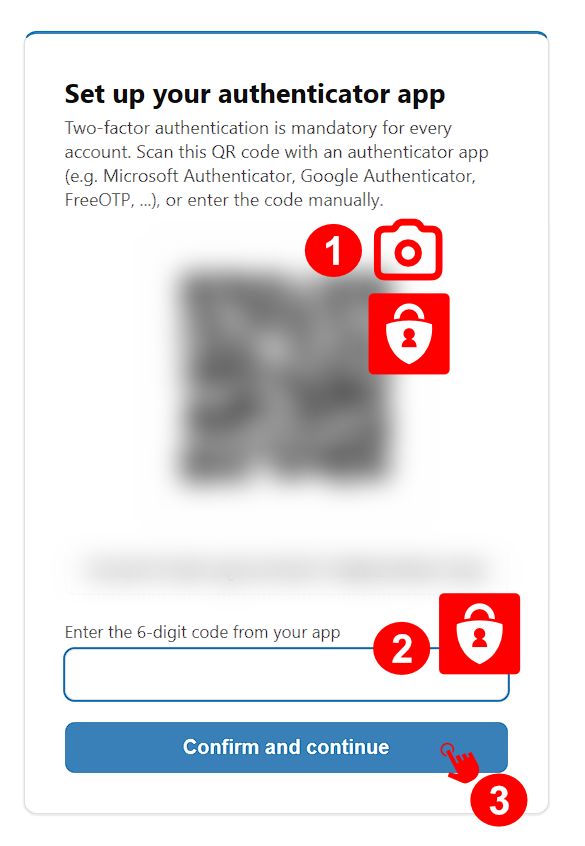
Two-factor authentication (2FA) is mandatory for all portal accounts. You will need an authenticator app on your phone or computer, such as Microsoft Authenticator, Google Authenticator, or FreeOTP.
- Open your authenticator app and scan the QR code displayed on the page. If you can't scan it, enter the code shown below the QR code manually in your app.
- Your app will now display a 6-digit code for the NIC6 Web Portal. Enter it in the Enter the 6-digit code from your app field.
- Click Confirm and continue.
About OTP app
You will need a code from your authenticator app every time you sign in with your password. If you change or reset your phone you may lose access to the portal. In this scenario, contact support to reset your account.
Step 5 (optional): Register a passkey
Once your password and authenticator app are set up, you can also register a passkey. A passkey lets you sign in with your device's built-in authentication, such as your fingerprint, face recognition or a device PIN. You won't need to type your password or a 6-digit code.
- Click Register a passkey when prompted.
- Your browser or operating system will ask you to confirm with your fingerprint, face, PIN, or security key. Follow the on-screen instructions.
- Once the passkey is created, you will be redirected to the portal.
After registering a passkey, you can sign in by clicking Sign in with a passkey on the sign-in page.
Passkeys are tied to a device
A passkey is usually stored on the device or password manager where you created it. If you use the portal from several computers, you can register a passkey on each of them, or sign in with your password and authenticator code on devices without one.
Step 6: Start using the portal
Your registration is complete, and you are now signed in to the NIC6 Web Portal. From the portal dashboard, you can browse and manage your files, submit and monitor jobs, open a shell on the cluster, and launch interactive applications directly from your browser. From now on, sign in from the sign-in page with either your password and a 6-digit code from your authenticator app, or your passkey if you registered one in Step 5.