Disk space
Danger
There is no backup of the data stored on any cluster. Any removed file is lost for ever. It is the user's responsibility to keep a copy of the contents of their home in a safe place.
Each cluster is equipped with several file systems that can be used to store files. They are schematically represented on the figure below.
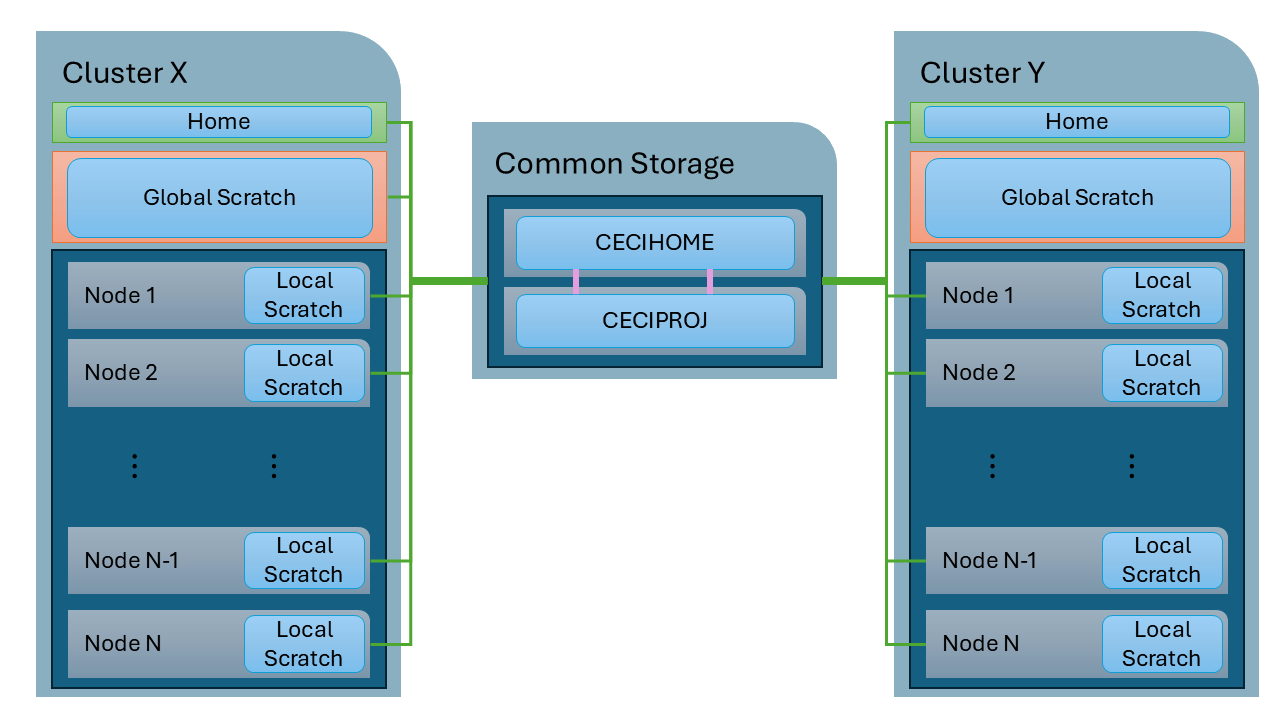
These disk spaces have different properties and each of them is designed to best fit different usage intents. They are listed in the table below.
| Disk space | Scope | Environment variables | Intended for | Lifetime |
|---|---|---|---|---|
| Home | cluster | $HOME |
Programs, scripts, configuration files, small files | cluster or account lifetime + grace period |
| Global scratch | cluster | $GLOBALSCRATCH |
Jobs data: large inputs, outputs, multi-node jobs | up to one year |
| Local scratch | node | $LOCALSCRATCH |
Temporary files of single-node jobs | job lifetime |
| Common Storage Home | CÉCI | $CECIHOME |
Personal data accessible from all the clusters | account lifetime + grace period |
| Common Storage Project | CÉCI | $CECIPROJ |
Data shared by the members of a project | one year, renewable |
Note
Quotas and time limits are enforced on the use of space of the different storage areas. See section "Quota" for details.
The "Scope" column indicates from where the disk space is accessible. A scope of "cluster" means all compute nodes and frontends in the cluster share the same filesystem. By contrast, a scope of "node" refers to storage space that is distinct for each node; it is local to that node and cannot be accessed from outside the node. The "CÉCI" scope means the filesystem is accessible from all compute nodes and all frontends of all CÉCI clusters. Finally, a scope of "external" refers to machines that are outside the perimeter of the CÉCI consortium and are managed by the universities.
The "Lifetime" column indicates the duration for which the data will be kept. Data residing in the home directories will reside there as long as the cluster is in production and the account owning the data was renewed no later than a couple years ago (grace period). When a date for decommissioning is decided, users are warned, and instructions are offered to migrate the data either to a newer cluster, or to another storage.
Warning
Data on any filesystem belonging to accounts that are expired for more than 500 days are eligible for deletion, after notification to the data owner, or their supervisor should the owner be unreachable.
Note
You can also check the presentation given at our yearly training sessions about using the different storage solutions on the clusters.
Choosing the right filesystem
Home file system
Upon login on a login node or front-end, you will end up in your home
directory. This directory is available on the front-end and all compute nodes of a cluster. Its
full path can be shown with echo $HOME and you can return there with a simple
cd command. It is in general served over the network by a single file server shared by
all the users of the cluster.
The home filesystem is dedicated to source code (programs, scripts), configuration files and small datasets.
Warning
Do not use your home for the output of your jobs. It offers the lowest performance and the smallest space of all the filesystems. Use the local scratch or the global scratch instead (see next sections).
Local Scratch file system
The local scratch is a temporary disk space available on all compute nodes and is only visible from within the compute node it belongs to. Often they are built on top of a fast local SSD.
For each job, a private temporary directory is created on every node allocated
to it when the job starts. It is referenced by the $LOCALSCRATCH environment
variable and is typically something like /scratch/<login_name>/<job_id>. You
can directly use this environment variable in your job scripts, you do not need
to create the directory.
There you can write/read temporary results during your job, and copy the results of interest to a persistent filesystem before the end of the job script. The local scratch directory is removed automatically, with all its files, immediately after the job terminates. Therefore, all files you want to save must be copied from the scratch directory to a global filesystem (the global scratch, or your Home for small results) as part of your job.
Using the scratch directory when running a batch job is often more efficient than using the home or globalscratch. If your jobs performs a lot of disk I/O to files that do not need to be shared between nodes, then use this directory. This relieves the load on the central disk servers, and most of the time also makes your job run faster. Also, do not hardcode the use of the /tmp directory for the I/O of your jobs. It is always smaller than the dedicated local scratch partition, and filling it will impact the stability and proper functioning of the node.
Warning
There is no quota limit on the local scratch, and the disk is shared with the other jobs running on the same node. The user has to be careful not to fill the space otherwise the job will probably crash.
Global Scratch file system
The globalscratch is a high-performance shared disk space common to
all compute nodes and to the front-end of a cluster. Its full path can be shown with echo
$GLOBALSCRATCH. The path will differ from one cluster to other. The
globalscratch is often built using a fast parallel filesystem such as
Lustre,
GPFS,
BeeGFS, or
CEPH.
The globalscratch should be used to store the files generated by your batch jobs. You can also copy there large input files if required. As it is visible from all the nodes, it is the place to use for multi-node jobs, or to pass data from one job to the next. After that, it is customary in the job script to create a subdirectory with the job id, where all temporary data will be written, and to clean unnecessary data when the job finishes.
Some clusters enforce a quota on the globalscratch directories (see section "Quota" for details). This quota is a safeguard for the integrity of the filesystem, but it can be adjusted upon a duly justified request. If your workflow requires a special consideration about this, do not hesitate to contact the support team of the cluster you are using.
To use the globalscratch, you might first need to create a directory by yourself. It is then common to name it after your login. On some clusters, it might already be created for you. Anyway, it is always safe to try to create it on any CÉCI cluster with the command.
mkdir -p $GLOBALSCRATCH
Warning
The globalscratch is not a long-term storage. Its data can be removed at any time, especially during maintenance periods. Keep a copy of the useful output you need somewhere else.
Common Storage
The CÉCI common storage is an external storage accessible from the login and
compute nodes of all the clusters. It provides a personal directory
($CECIHOME) and project directories for teams sharing data (/CECI/proj/<project>).
More detailed information about this filesystem is available on the common
storage section.
Final remarks
As scratch spaces are not meant to store data in the long term, you should expect them to be cleaned automatically after some time. This does not mean that you should not do it yourself though: always clean up after your job. This is especially important after a job crashes before the cleaning operations in the submission script had a chance to run.
You need to be careful about filenaming when using a parallel job to avoid overwriting files by two different parts (threads, or processes) of the program, especially on global filesystems.
Even if your data is small and the quota allow you working in your home directory, you should consider using scratch spaces as they are in general much faster. The global filesystems are much faster because they handle requests and store data in parallel, while the local filesystems are faster as they do not need to access the network and they are used by far less jobs at a time. Reading and writing many small files is particularly slow on network filesystems: if your job does so, prefer the local scratch.
In short: keep your code in the home, run your jobs on a scratch space. Complete Slurm submission scripts illustrating some cases are given in the section Job examples using the different filesystems.
Long-term storage
The CÉCI does not provide long-term storage. Ask the systems administrator at your institution which kind of long-term storage they offer. Then you can transfer your data as explained in the file transfer section.
Quota
Quotas are set up on your home directory and, in some clusters, on your globalscratch space. There is no quota on the local scratch.
The quota system is based on soft quota, hard quota and a grace period.
A soft quota is the disk space level below which nothing happens for the user. When you reach the soft quota, a warning email is sent to you on some systems. On others, you get a message when you connect. This does not prevent you writing more data until the grace period is reached.
The grace period is the amount of time during which you are allowed to go over the soft limit before the system blocks your ability to write more data.
The hard quota is the disk space level above which the system blocks immediately your ability to write more data. However, you will still be able to read your data. If your hard quota is exceeded or if you exceed the grace time for your soft quota, you will be blocked from submitting jobs until you clean your space.
The table below present the storage quotas for CÉCI user accounts on each
cluster. Use the command ceci-quota to get all your current quotas usage:
username@ceci-cluster $ ceci-quota
 Diskquotas for user username
 Filesystem       used      limit      files      limit
 $HOME            14.9 GiB  100.0 GiB      43648     200000
 $GLOBALSCRATCH    2.3 TiB    5.0 TiB      70038     500000
 $CECIHOME         6.7 GiB  100.0 GiB      60222     100000
| Cluster | File system | Env variable | Soft quota | Hard quota | Grace |
|---|---|---|---|---|---|
| NIC6 | home globalscratch |
$HOME$GLOBALSCRATCH |
100 GB 5 TB |
100 GB 5 TB |
n/a |
| Lyra | home globalscratch |
$HOME$GLOBALSCRATCH |
100 GB 5 TB |
100 GB 5 TB |
n/a |
| Lemaitre4 | home globalscratch |
$HOME$GLOBALSCRATCH |
100 GB none |
100 GB none |
n/a |
| NIC5 | home globalscratch |
$HOME$GLOBALSCRATCH |
100 GB 5 TB |
110 GB 5 TB |
|
| Hercules | home globalscratch |
$HOME$GLOBALSCRATCH |
200 GB 400 GB |
1 TB 4 TB |
9 weeks 1 week |
| Dragon2 | home globalscratch |
$HOME$GLOBALSCRATCH |
40 GB 5 TB |
44 GB 5 TB |
|
| All Clusters | Global Home | $CECIHOME |
100 GB | 120 GB |