Active Jobs
The Active Jobs page lists the jobs that are currently queued or running on the cluster. You can use it to check the progress of your jobs, see their details, and cancel them when needed. To open it, select Jobs > Active Jobs in the top menu of the portal.
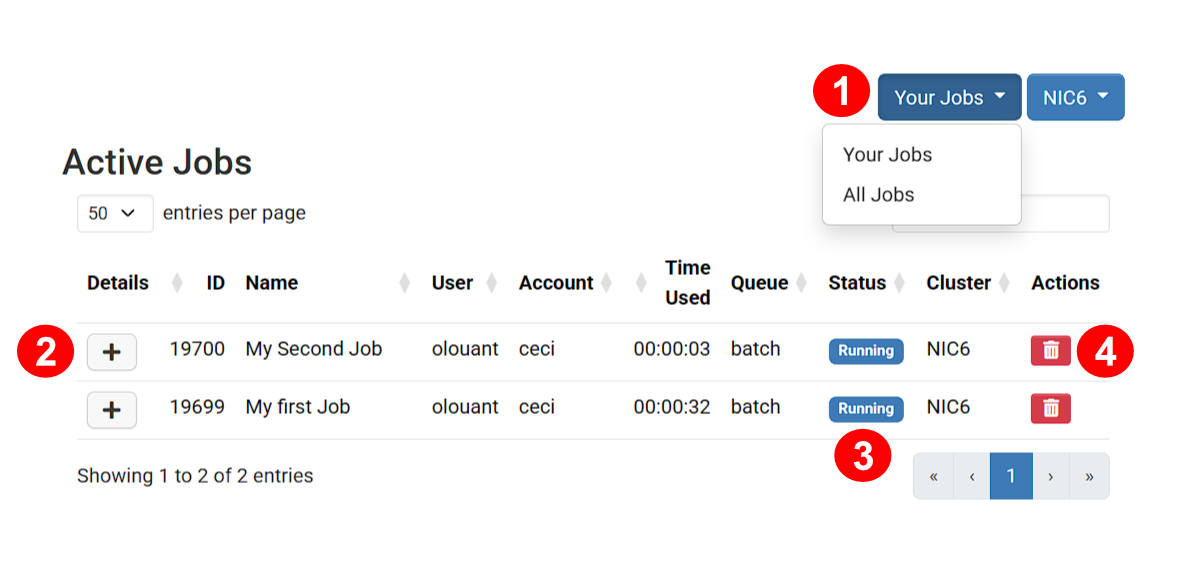
- Job filter. This drop-down menu selects which jobs are listed. Your Jobs, the default, shows only the jobs you submitted. All Jobs shows the jobs of every user on the cluster, which gives an idea of how busy the cluster is.
- Details button. The + button shows more information about the job, such as the nodes it runs on, the resources it requested, its time limit, and its working directory. The expanded view also has a link to open the job's working directory in the file browser, where you can check its output files.
- Job status. This badge shows where the job is in its life cycle:
- Queued: the job is waiting in the queue for resources to become available.
- Running: the job is currently running on the compute nodes.
- Completing: the job has finished, and the scheduler is cleaning up.
- Hold: the job is held and will not start until it is released.
- Delete button. This button cancels the job, after asking for
confirmation. It is equivalent to running
scancelwith the job ID on the command line.
The other columns of the table show the job ID assigned by Slurm, the job Name, the User who submitted it, the Time Used since it started and the Queue (partition) it was submitted to. You can sort the table by clicking a column header, and use the search field above the table to find a job by its ID, name, or any other displayed value.
Job details
Clicking the + button next to a job opens a panel with the full details of the job. Its current status, name, and ID are shown at the top of the panel.
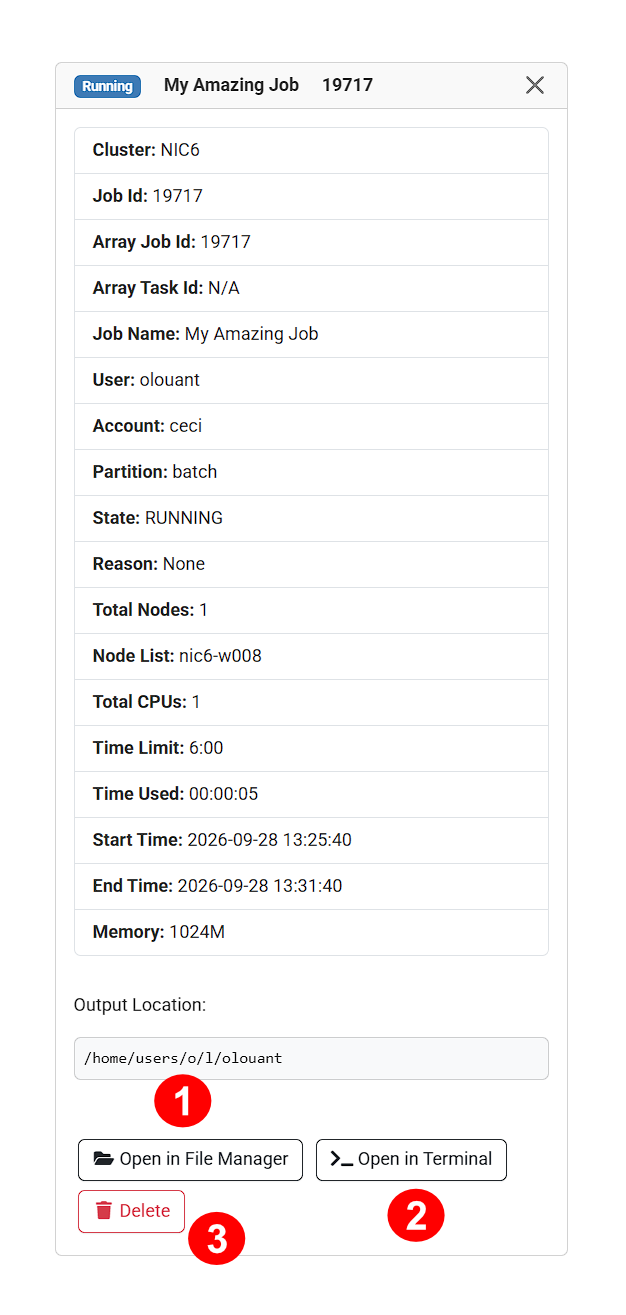
- Open in File Manager. This button opens the job's output location in the file browser. You can check the output and error files of the job there, even while it is still running.
- Open in Terminal. This button opens a terminal session on the cluster in
the job's output location. It is convenient for inspecting the output with
command-line tools, for example following a log file with
tail -f. - Delete. This button cancels the job, after asking for confirmation, just like the delete button in the job list.