Open OnDemand Web Portal
Beta service
The Open OnDemand Web Portal is currently in beta and is only available on the NIC6 cluster. Before using it, you need to register using your CÉCI account.
Network access required
The portal can only be reached from the network of a CÉCI member university.
What is Open OnDemand?
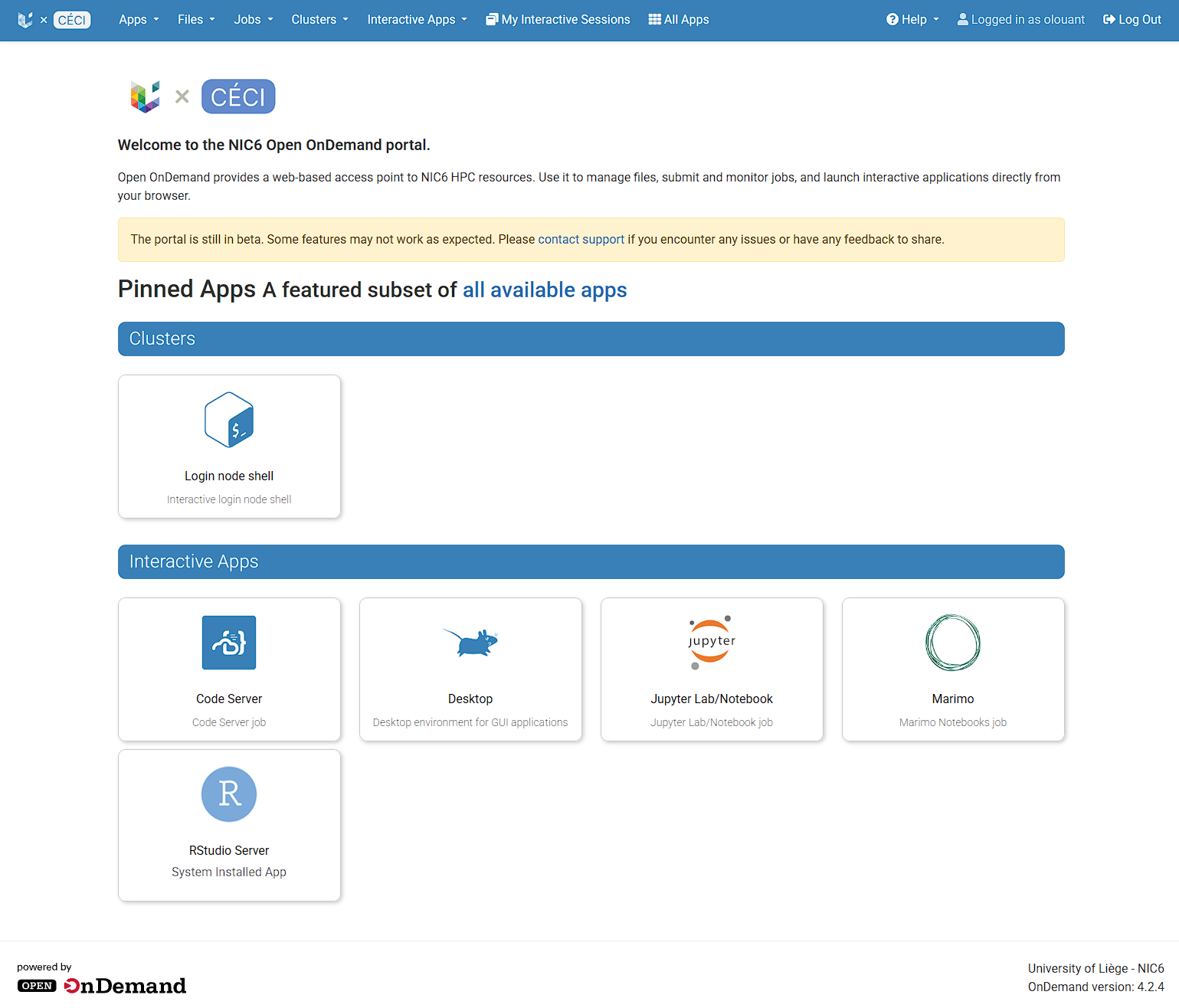
Open OnDemand is a web portal that gives you access to the NIC6 cluster directly from your browser. You don't need to install any software, set up an SSH client, or know how to use the command line. Simply go to the NIC6 Web Portal and sign in. If this is your first visit, you will need to register first.
From a single interface, you can manage your files, keep track of your jobs, and run interactive applications on the compute nodes. The portal complements SSH access rather than replacing it. Both give access to the same files and jobs, so you can switch between them at any time.
File browser
The file browser gives you a graphical view of your storage on the cluster,
including your home directory and the other file systems you have access to
($GLOBALSCRACH and Common Storage). You can navigate between folders, create,
rename, copy, move, and delete files and directories, and upload files from your
computer or download results from the cluster. Small text files, such as job
scripts or configuration files, can be viewed and edited directly in the browser
with the built-in editor. The file browser also lets you open a terminal in the
current directory, which is convenient when you need to run a quick command.
Active jobs
The active jobs page lists the jobs currently queued or running on the cluster. You can filter the list to show only your own jobs or those of the whole cluster, and view the details of each job, such as its state, the resources it requested, the partition it runs on, and how long it has been running. From this page, you can also cancel jobs you no longer need, or open the job's working directory in the file browser to check its output.
Interactive apps
Interactive apps let you run graphical and interactive applications on the compute nodes. Examples include a full remote desktop and programming environments such as JupyterLab or RStudio. To start a session, you fill in a short form with the resources you need, such as the number of cores, the amount of memory, and the duration. The portal then submits a job to the scheduler for you. Once the job starts, a Connect button appears, and the application opens in a new browser tab. Because each session runs as a regular job, it counts toward your usage like any other job and ends automatically when its time limit is reached.
Warning
Interactive sessions reserve resources for as long as they run, even when you are not using them. When you are done, remember to close your session from the My Interactive Sessions page so the resources are released for other users.