File Browser
The File Browser lets you manage your files on the cluster from your browser. You can navigate between directories, create, edit, rename, and delete files, and transfer files between your computer and the cluster. To open it, select Files in the top menu of the portal, then choose the storage area you want to browse.
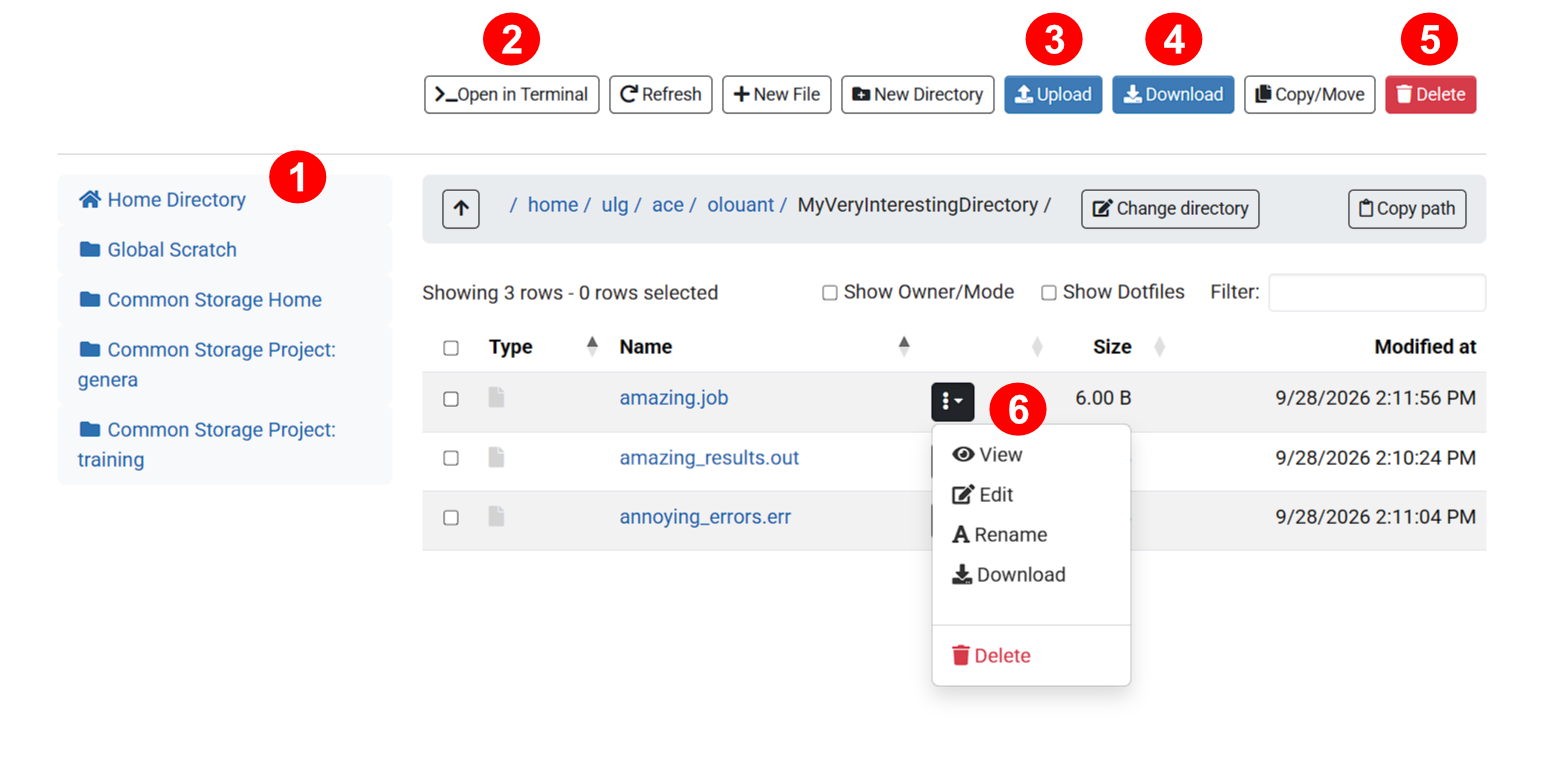
- Storage shortcuts. The panel on the left gives quick access to the storage areas available to you: your Home Directory, the Global Scratch, your Common Storage Home, and the Common Storage Project directories of the projects you belong to. Clicking a shortcut opens the corresponding directory.
- Open in Terminal. This button opens a terminal session on the cluster in the current directory, which is convenient when you need to run a quick command.
- Upload. This button uploads files from your computer to the current directory. You can also drag and drop files from your computer onto the file list.
- Download. This button downloads the selected files to your computer. Select the files to download with the checkboxes at the start of each row first. Directories are downloaded as a ZIP archive.
- Delete. This button deletes the selected files and directories, after asking for confirmation.
- File action menu. The menu next to each file gives access to the actions
that apply to that file only:
- View: display the content of the file in a new browser tab.
- Edit: open the file in the built-in text editor, which is convenient for small changes to job scripts or configuration files.
- Rename: change the name of the file.
- Download: download the file to your computer.
- Delete: delete the file, after asking for confirmation.
Deleted files cannot be recovered
Files deleted from the File Browser are removed permanently. They are not moved to a trash folder, so double-check your selection before confirming.
Transferring large amounts of data
The File Browser is well suited for transferring a few files at a time. For
large files or many files, command-line tools such as
scp
or
rsync
are faster and more reliable, and can resume an interrupted transfer.
The other buttons of the toolbar let you Refresh the file list, create a New File or a New Directory in the current directory, and Copy/Move the selected files. To copy or move files, select them and click Copy/Move, go to the destination directory, then choose whether to copy or move them there.
Above the file list, the path bar shows the current directory. You can click any part of the path to jump to that directory, use the arrow button to go up one level, click Change directory to type a path directly, or click Copy path to copy the path of the current directory to your clipboard. Below it, Show Owner/Mode adds columns with the owner and permissions of each file, Show Dotfiles displays hidden files (files whose name starts with a dot), and the Filter field shows only the files whose name matches the text you type.